|
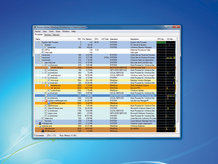
Process Hacker is great for identifying resource hogs – use the graphs to see how much each process uses the hard disk
Here's the shocking truth: dubious default settings, wrong configurations and wasteful processes are sapping many of your PC's valuable resources. And what's to blame? Windows.
Windows is deceptive. After you've installed it, the OS happily connects to the internet, downloads all the necessary drivers, configures itself and there you go – one stable PC all ready to roll. It couldn't be easier or more convenient.
But the problem is, Windows doesn't come optimised for performance. And it's much the same story for most of your applications: they're all set up to work, not roar along.
So what's the answer? We say take control and don't trust Windows' default settings. Sure, they'll yield a machine that is stable and dependable, and to a degree that's the point. That's what the average user wants, and it's what Microsoft and PC makers need. By keeping configurations nicely conservative they'll keep PCs the world over ticking along happily and calls to their technical support divisions low.
But we aren't average users. We're demanding users who want to squeeze every drop of performance out of our computers. So, join us as we declare war on default settings and automatic configurations. Take control of your PC and release its full potential!
Remove processes
A good first step when speeding up your system is to identify and remove the processes that are currently wasting its resources. Windows runs a slew of processes by default. Some are essential to the functioning of your machine, but many others are unnecessary resource hogs.
Process Hacker (a Task Manager-type utility with many more features) is perfect for sorting the wheat from the chaff, so go grab a copy from here.
Launch the program and rightclick the Name column header to define what information it should display. Ensure that 'Name', 'PID', 'Pvt Memory', 'CPU', 'I/O Total', 'Username', 'Description', 'CPU History', 'Handles' and 'I/O History' are all checked.
Now click 'OK' and you'll see two small graphs – CPU History and I/O History – that give a visual pointer as to how each running process has been behaving in the past few seconds.
This is helpful information: if your hard drive has been thrashing for some unknown reason, for example, scan the I/O History column. Anything showing spikes of activity is a suspect.
Exactly what Process Hacker uncovers will vary depending on your system, but on our test PC we noticed that 'IBurn.exe' (a packet writing program provided with Cyberlink Media Suite) had regular I/O read spikes and that a process associated with VMware Workstation, 'vmware-tray.exe', was tying up CPU and I/O time.
It's important not to overreact and start shutting down resource-hungry processes, because if you pick something important, your PC will crash. Instead, try to identify the process, and if it proves to be unnecessary, make sure it doesn't reload next time.
To do this for IBurn.exe, we loaded the InstantBurn System Configuration Tool and clicked 'Disable InstantBurn' to stop it launching when Windows next started. The vmware-tray.exe process was just as easy to turn off: we launched VMware Workstation, clicked 'Edit | Preferences | Workspace' and cleared the 'Show Tray Icon' box to ensure it wouldn't start again.
The next thing to do is click the Pvt Memory column header to sort your processes by the amount of RAM they're using – a handy way to see the real resource hogs. Once again, we found programs that could be removed.
'SkypePM.exe' was the Skype Extras Manager, but we didn't use them: clicking 'Tools | Options | Advanced Settings' and clearing 'Automatically start extras' meant that the process wouldn't load next time.
If you're looking for more savings, target 'iTunesHelper.exe'. It launches iTunes when it detects an iPod or iPhone being plugged into the PC. If you don't have one, run Regedit, head to 'HKEY_ LOCAL_MACHINE\SOFTWARE\Microsoft\WindowsCurrentVersion\Run', right-click the iTunesHelper key and click 'Delete'.
We've only carried out four tweaks so far, then, but we've freed up at least 47MB of RAM, as well as reducing background I/O and CPU activity. That's not bad, but some judicious tweaking of Windows services may be able to deliver even more.
[1] [2] [3] [4] [5] [6] 下一页 【已有很多网友发表了看法,点击参与讨论】【对英语不懂,点击提问】【英语论坛】【返回首页】
|